Workflow and automation: your process runs on its own after data collection
HashData Workflow runs the steps that come after each response: it requests approvals, notifies the right people, requests new data collections, feeds spreadsheets and sends data to other systems. All designed in a visual, no-code editor, with the history of every run recorded.
Purchase request approval
Choose the manager’s decision and see which path the flow takes.
- Confirmation email to the requester
- New row in Google Sheets
- Run history as a PDF
- Email to the requester with the reason
- Status: request closed
- Reminder to the manager with the approval link
- Status: approval overdue
Last step of the run: Purchase approved and recordedEvery step is recorded on the timeline
In short
Workflow is HashData’s automation module. A flow starts with a trigger, such as a new form response or a scheduled time, and moves through steps configured in a visual editor: email approvals with deadlines, notifications, requests for new forms, conditional decisions, waits, PDF generation and integrations with Slack, Teams, Google Sheets, Excel 365, Google Drive, OneDrive and other systems via HTTP. Every run has its own status and history.
Custom flows in a visual editor
The flow is designed on a canvas: steps sit in a side palette, are dragged to the center and connected with arrows that set the order. Clicking a step opens a panel with its settings, such as recipients, texts and conditions. Email texts, statuses and documents accept variables such as {{field_name}}, filled in with the form responses.
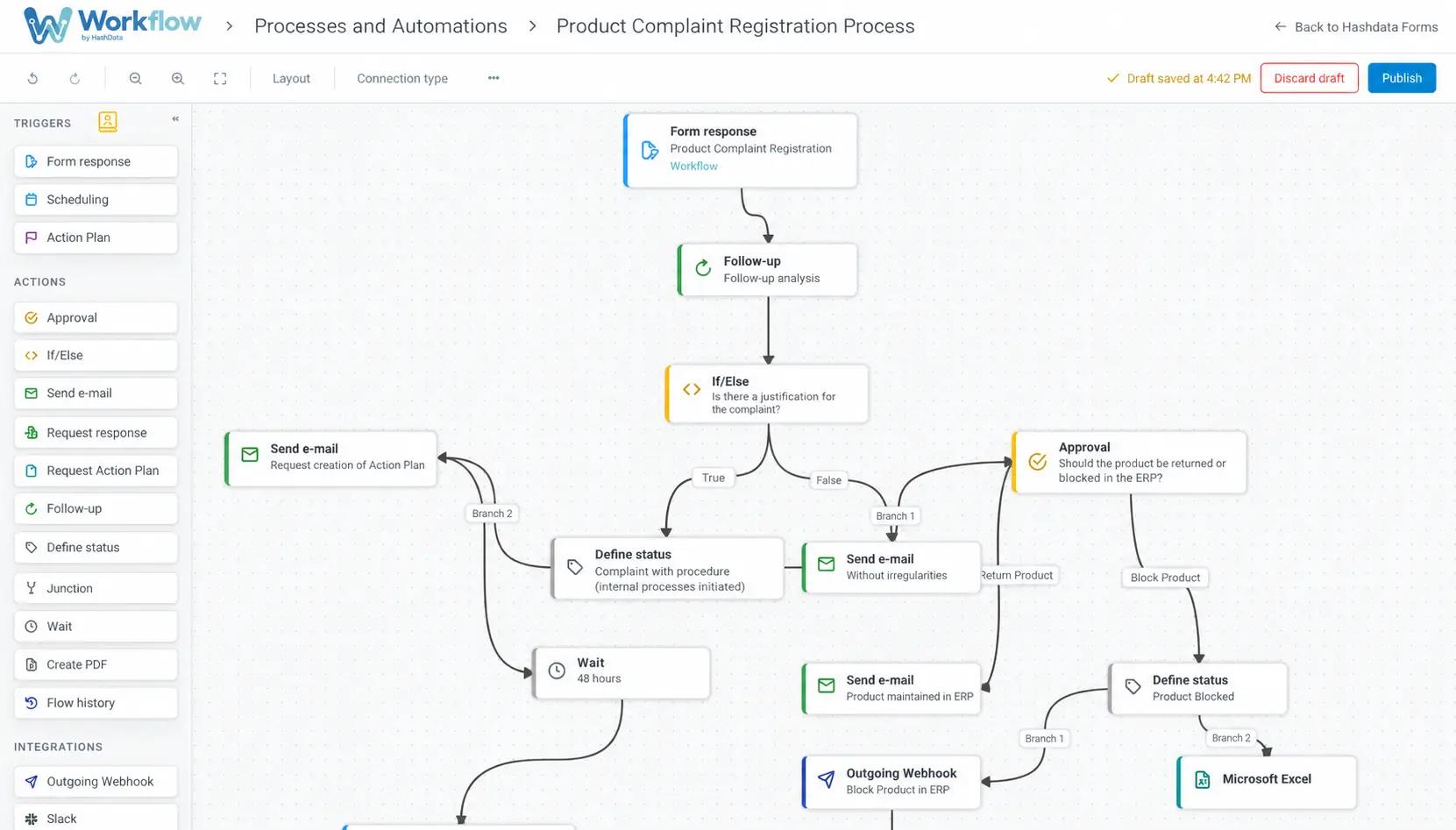
- Choose the triggerA response created, edited or deleted in a form, or a daily, weekly, biweekly or monthly schedule.
- Build the stepsDrag in approvals, notifications, decisions and integrations, and connect each output to the next step.
- PublishThe system validates the setup, and the new version applies to the next triggers.
- TrackEvery run shows up on the dashboard with its status and event timeline.
Editing a flow in production is safe: changes stay in draft until published, and runs in progress finish on the version they started with.
Automations: the available steps
| Step | What it does | Outputs |
|---|---|---|
| Approval | Sends the request by email and waits for the decision; custom outcomes with label and color | One per outcome, plus deadline expired |
| Send email | Message with response data and attachments generated in the flow | One |
| Request form | Invites someone to fill in another form and waits | Response or deadline expired |
| Request completion | Asks for an already collected response to be completed | Response or deadline expired |
| Decision | Evaluates conditions on the responses | True or false |
| Wait | Pauses for minutes, hours, days or weeks | One |
| Merge | Waits for parallel branches to arrive before moving on | One |
| Set status | Shows which stage each case is in | One |
| Create PDF | Generates a custom document with the data | One |
| History as PDF | Generates the full record of the run, ready for audits | One |
Approvals that don’t hold up operations
The approver receives an email with the details and one button per decision, such as “Approved”, “Rejected” or “Needs review”. They click, confirm in the browser with an optional comment, and the flow moves on right away. The link is single-use and expires with the decision or the deadline.
With a deadline set, no response also has its own path: a reminder, escalation to another person or closing the case. Sequential approvals, with a value-based decision between them, create approval tiers.
Integrations with your team’s tools
The connection to each service is authorized once, right in the step’s panel.
Every run with status and history
| Status | Meaning |
|---|---|
| Awaiting approval | Stopped at an approval |
| Awaiting response | Waiting for a requested form or completion |
| Waiting | In a scheduled wait |
| Completed | Reached the end of the flow |
| Failed | Stopped due to an error, such as an unavailable integration; can be reprocessed after the fix |
| Canceled | Stopped manually |
Each run’s timeline shows what happened, when and who did it. When something fails, the flow owner gets an email alert. The history can be generated as a PDF and attached or sent to Drive at the end of the process, as evidence for purchasing, quality or compliance audits.
Use cases by industry
| Industry | Process | How the flow works |
|---|---|---|
| Manufacturing | Non-conformity across departments | Quality record, decision by severity, manager approval, analysis request to maintenance and history as a PDF |
| Food industry | Customer complaint | Complaint form, sent to the ERP via HTTP, quality approval and reply to customer service |
| Purchasing | Request with approval tiers | Manager approval, value-based decision, second approval above the limit and spreadsheet record |
| Field and inspections | Alert and consolidation | Email to supervisors after each inspection and a row in Google Sheets |
| Agribusiness | Field report validation | Supervisor approval before the report goes out as a PDF |
| Workplace safety | Incident or near miss | Teams alert and investigation request with a deadline |
| Human resources | Step-by-step hiring | Screening by approval and a follow-up form for the candidate with a deadline |
| Services | Additional on-site quote | Customer approval by email and reply to the technician |
Email and chat Vs HashData Workflow
| Situation | Manual process | HashData Workflow |
|---|---|---|
| New request submitted | Someone has to notice and forward it | The approver gets the request right away |
| Approver doesn’t respond | Follow-up phone calls | Automatic reminder or escalation at the deadline |
| Which stage is each case in? | Ask everyone involved | Status and last step on the dashboard |
| Data in a spreadsheet or system | Manual export and data entry | New row or HTTP request on every run |
| Proof of who decided | Scattered emails | Timeline and history as a PDF |
Frequently asked questions
What is HashData Workflow?
It is HashData’s automation module. It automatically runs the steps that come after a data collection or at scheduled times, such as approvals, notifications, new data collections, exports and integrations, designed in a visual no-code editor.
How does approval work?
The approver receives an email with the request details and one button per decision. They click, confirm on a browser page with an optional comment, and the flow follows the chosen path. If the configured deadline expires without a response, the flow follows its own path.
Do I need to code to create a flow?
No. Flows are built by dragging steps onto a canvas and connecting them with arrows. Each step is configured in a side panel.
Which tools does Workflow integrate with?
Slack, Microsoft Teams, Google Sheets, Excel 365, Google Drive and OneDrive, natively. Other systems, such as ERPs and CRMs, receive data via HTTP request, with separate paths for success and error.
Does changing a flow affect processes in progress?
No. Changes stay in draft until published. Once published, the new version applies to the next triggers, and runs in progress finish on the version they started with.
How do I track each process?
Each flow has a runs dashboard with the status of each one, such as awaiting approval, completed or failed, and an event timeline. The history can be generated as a PDF for audits.
See your processes running on their own
We’ll show you how to turn an approval or alert that now depends on email and phone calls into an automated flow in HashData.